How to create your own personal logo using Canva
Simple Logo (Easy)

Do you want an image for your website but don’t want to use your face, or don’t have a good photo to use? Here’s how to create a logo on Canva using your own initials in
Step 1: First, go to https://www.canva.com/
Step 2: Click the “create” button

Step 3: Choose “logo” this will create an appropriately sized document for you.

Step 4: Click “text”

Step 5: Click “Add a text box”
Step 6: Click the text box, click again to edit. Add your desired initials. Drag the purple dot to change the size.
Step 7: Find the text spacing button. This will allow you to move the letters closer to each other to create a logo type design.

Step 8: Click “share” in the top right corner, and download to your device. (Recommended to save as a PNG.) Then you’re done!


Logo Template (intermediate)
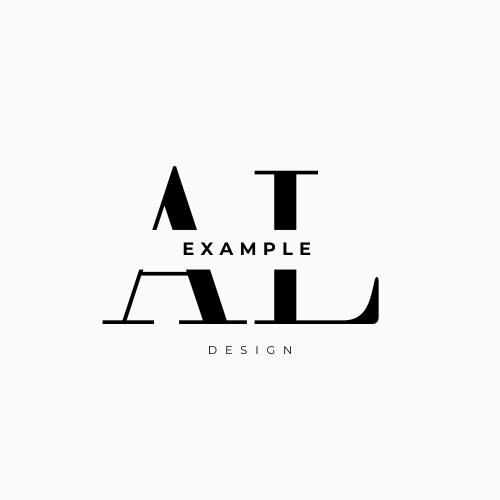
Step 1. Repeat steps 1 and 2 from before.
Step 2. Find the “design” button

Step 3. Search “monogram logo” and you should find template options. Choose one that you like.

Step 4. Use your mouse to click each segment, double click to edit the text. Customize to your liking by replacing letters with your own. Repeat step 8 to save. Then you’re all set!